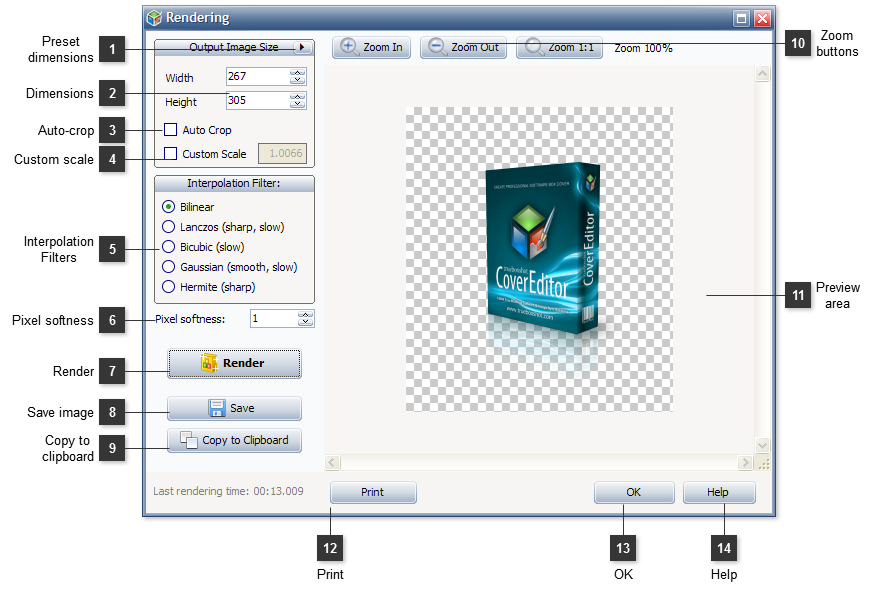
Use this dialog to finally render the 3D box shot scene and to save it into an image file. In the Rendering window you may explicitly specify the size of the output image, cropping settings and interpolation filter type.
Preset dimensions
Press the button to select a preset dimension (height and width) of the output image from the pull down list.
Check the option to automatically cut off the blank spaces of the output image to reduce the image file size. Nevertheless, this function keeps about 3% of the blank space around the image.
Use resampling filters to enhance the appearance of the output image. Some filters add blurring or smoothing effect to an image, while others increase the sharpness of the edges. Test every filter to choose one that suits your design style.
The following filter types are available:
Bilinear
Produces good results for image reduction and enlargement, but displays sharp transition lines. Very fast calculations.
Lanczos
Produces the sharpest images, but may also introduce some ringing artefacts.
Bicubic
Produces good results with photo-realistic images and with images that are irregular or complex.
Gaussian
Produces smooth transitions, but may cause excessive blurring.
Use this field to set the image pixel softness. It defines the scaling of the area covered by each single pixel. Higher values produce softer (more blurry) image. The values lower than 1.0 produce sharper output, though the aliasing and fuzziness effect may appear as well.



 Press the button to select a preset dimension (height and width) of the output image from the pull down list.
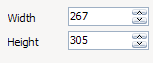 Use these numeric fields to explicitly set the output image width and height in pixels.
 Check the option to automatically cut off the blank spaces of the output image to reduce the image file size. Nevertheless, this function keeps about 3% of the blank space around the image.
 Check this option and set the numeric value to explicitly set the scale factor for the output image.
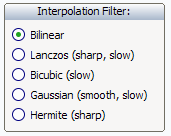 Use resampling filters to enhance the appearance of the output image. Some filters add blurring or smoothing effect to an image, while others increase the sharpness of the edges. Test every filter to choose one that suits your design style.
 Use this field to set the image pixel softness. It defines the scaling of the area covered by each single pixel. Higher values produce softer (more blurry) image. The values lower than 1.0 produce sharper output, though the aliasing and fuzziness effect may appear as well.
 Press the button to render the 3D box shot image with set parameters.
 Press the button to save the rendered 3D box shot image into a graphical file, using the settings of the
 Press the button to copy the rendered 3D box shot image into the clipboard.
 Use these buttons to zoom in \ out the image in the preview area.
 The preview area displays the rendered 3D box shot image.
 Press the button to print the rendered picture.
 Press the button to save the changes and to close the dialog.
 Press the button to show the context help.