Press the button to select an image file to insert as a new layer. Once you have selected the file select a rectangle region with mouse in designer area to insert the image there.
Press the button to turn on the new layer insertion mode and drag the mouse over the designer area to create a new text object. Then double click on the text object to edit its content.
Press the button to turn on the new layer insertion mode and drag the mouse over the designer area to create a new curvy text object. Then double click on the created object to edit its content.
Press the button to turn on the new layer insertion mode and drag the mouse over the designer area to create a new wavy text object. Then double click on the object to edit its content.
Press the button to turn on the new layer insertion mode and drag the mouse over the designer area to create a new multiline text object. Then double click on the object to edit its content.

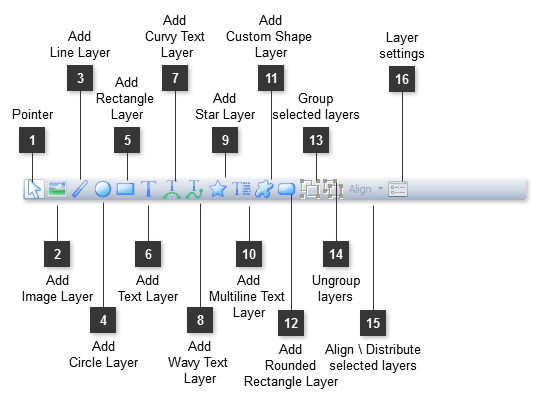

 Press the button to reset editing mode and to turn the mouse into simple pointer.
 Press the button to select an image file to insert as a new layer. Once you have selected the file select a rectangle region with mouse in designer area to insert the image there.
 Press the button to turn on the new layer insertion mode and drag the mouse over the designer area to draw a line object.
 Press the button to turn on the new layer insertion mode and drag the mouse over the designer area to draw a circle object.
 Press the button to turn on the new layer insertion mode and drag the mouse over the designer area to draw a rectangle object.
 Press the button to turn on the new layer insertion mode and drag the mouse over the designer area to create a new text object. Then double click on the text object to edit its content.
 Press the button to turn on the new layer insertion mode and drag the mouse over the designer area to create a new curvy text object. Then double click on the created object to edit its content.
 Press the button to turn on the new layer insertion mode and drag the mouse over the designer area to create a new wavy text object. Then double click on the object to edit its content.
 Press the button to turn on the new layer insertion mode and drag the mouse over the designer area to draw a star object.
 Press the button to turn on the new layer insertion mode and drag the mouse over the designer area to create a new multiline text object. Then double click on the object to edit its content.
 Press the button to turn on the new layer insertion mode and drag the mouse over the designer area to insert a custom shape object.
 Press the button to turn on the new layer insertion mode and drag the mouse over the designer area to draw a rectangle object with rounded color.
 Use this button to group several selected layers into a single set.
 Use this button to ungroup a selected set into several original layers.
 Click the button and use its pull down menu commands to properly align or distribute the selected layers.
 Click the button to open the