 Pointer Press the button to reset editing mode and to turn the mouse into simple pointer. |
 Add Image Layer Press the button to select an image file to insert as a new layer. Once you have selected the file select a rectangle region with mouse in designer area to insert the image there. |
 Add Line Layer Press the button to turn on the new layer insertion mode and drag the mouse over the designer area to draw a line object. |
 Add Circle Layer Press the button to turn on the new layer insertion mode and drag the mouse over the designer area to draw a circle object. |
 Add Rectangle Layer Press the button to turn on the new layer insertion mode and drag the mouse over the designer area to draw a rectangle object. |
 Add Text Layer Press the button to turn on the new layer insertion mode and drag the mouse over the designer area to create a new text object. Then double click on the text object to edit its content. |
 Add Curvy Text Layer Press the button to turn on the new layer insertion mode and drag the mouse over the designer area to create a new curvy text object. Then double click on the created object to edit its content. |
 Add Wavy Text Layer Press the button to turn on the new layer insertion mode and drag the mouse over the designer area to create a new wavy text object. Then double click on the object to edit its content. |
 Add Star Layer Press the button to turn on the new layer insertion mode and drag the mouse over the designer area to draw a star object. |
 Add Multiline Text Layer Press the button to turn on the new layer insertion mode and drag the mouse over the designer area to create a new multiline text object. Then double click on the object to edit its content. |
 Add Custom Shape Layer Press the button to turn on the new layer insertion mode and drag the mouse over the designer area to insert a custom shape object. |
 Add Rounded Rectangle Layer Press the button to turn on the new layer insertion mode and drag the mouse over the designer area to draw a rectangle object with rounded color. |
 Group selected layers Use this button to group several selected layers into a single set. |
 Ungroup layers Use this button to ungroup a selected set into several original layers. |
 Align \ Distribute selected layers Click the button and use its pull down menu commands to properly align or distribute the selected layers. |
 Layer settings |
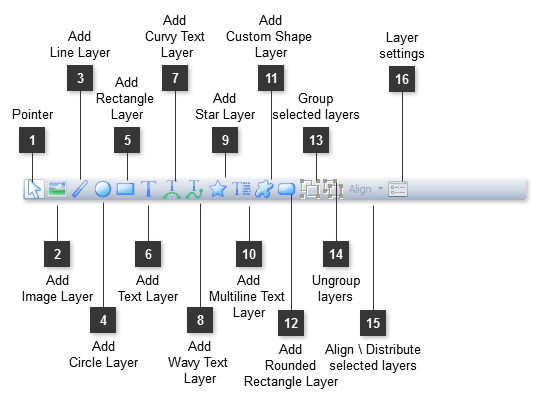
 Click the button to open the Layer Settings dialog for the selected layer.