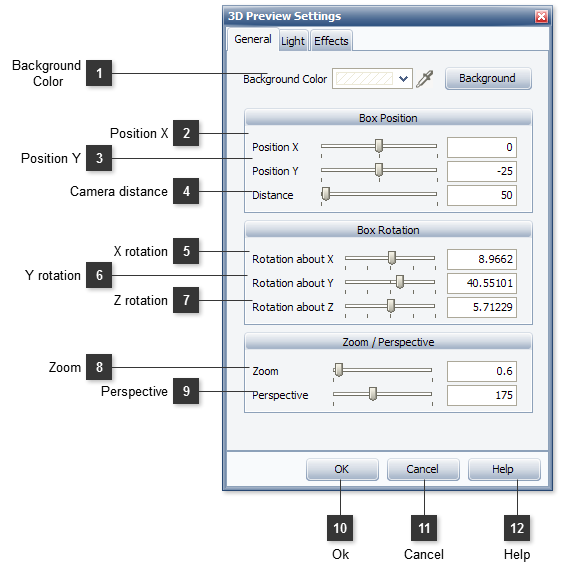
Use this dialog to setup 3D Preview settings: positions, light effects, reflections, etc. Those settings will be used for the final 3D Box Shot Rendering.
The General section allows you setup 3D box shot positions.
Background Color
Select the 3D preview background color from the drop down palette or drag the color picker tool over the screen. To load the background from image file or from the clipboard click the Background button and select the command from the pull down menu.
Use the slider to specify the perspective value of the 3D box shot image. This perspective value defines dimensions and position of the camera in the 3D scene.
For instance, the nearest parts of the box look bigger in the picture


 Select the 3D preview background color from the drop down palette or drag the color picker tool over the screen. To load the background from image file or from the clipboard click the Background button and select the command from the pull down menu.
 Use the slider to setup the horizontal shift of the box shot from the center of the 3D preview area.
 Use the slider to setup the vertial shift of the box shot from the center of the 3D preview area.
 Use this slider to change the "camera distance" for the 3D box shot scene. The distance value affects the perspective effect calculation.
 Use this slider to specify the angle of 3D box shot rotation about the horizontal X-axis.
 Use this slider to specify the angle of 3D box shot rotation about the vertical Y-axis.
 Use this slider to specify the angle of 3D box shot rotation about the orthogonal Z-axis.
 Use the slider to specify the size of the 3D box shot image relatively to the whole 3D scene.
 Use the slider to specify the perspective value of the 3D box shot image. This perspective value defines dimensions and position of the camera in the 3D scene.
 Press the button to save the changes and to close the dialog.
 Press the button to discard the changes and to close the dialog.
 Press the button to show the context help.